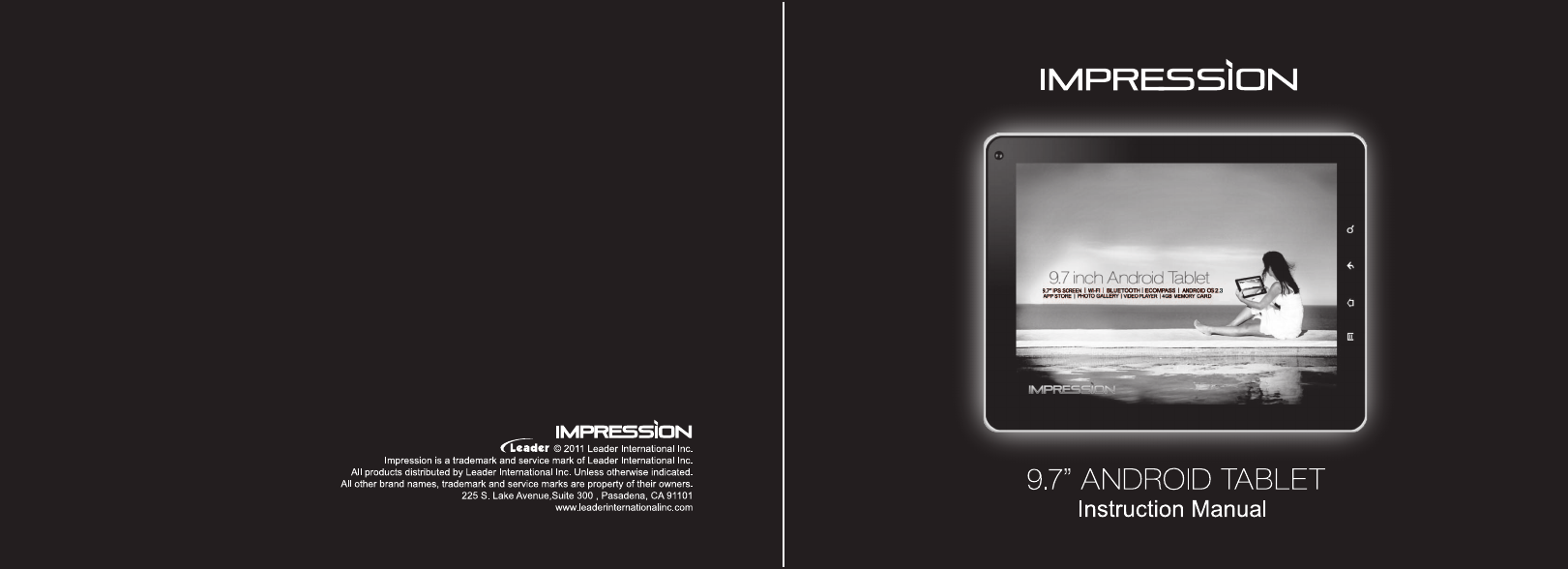
Impression 10-50 Manuale delle Istruzioni
Navigare online o scaricare Manuale delle Istruzioni per Tablet Impression 10-50. Impression 10-50 Instruction Manual Manuale Utente
- Pagina / 48
- Indice
- SEGNALIBRI

- Contents 2
- Function Keys 4
- On/Off Key 5
- Recover Factory Settings 5
- Update System Version 5
- Touch Screen Interface 7
- Screen Interface 8
- Widgets 8
- Status Bar 8
- Status Bar Icons 9
- Application List 10
- Settings 11
- 1.Click “Calibration” 12
- Language Settings 13
- Screen Brightness Settings 14
- Screen Timeout Settings 15
- SD card Mount / Un-Mount 16
- HDMI device output 18
- USB Connections 20
- Wi-Fi Settings 22
- Camera/ Camcorder 23
- Browsing 24
- Application Installer 25
- File Manager 26
- The Kobo App in I10 29
- Open Kobo 29
- SAM (SlideMe) 32
- Open SAM 32
- Music Player 35
- Song Screen 36
- Video Player 37
- Picture Browser 38
- Pictures 39
- Email Setup 40
- Email Setup (continued) 41
- Clock Settings 43
- Alarm & Time Settings 44
- Specications 45
- FCC Statement 47
Sommario
9Application List Click the Application List icon to show the application library. Touch an application icon to start it up.Press and hold the appli
10Touch Screen Calibration In the application list screen, Click the “Screen Calibrator” icon: 1 Click “ReCalibration”2 Click “Start” 3 The screen
111.Click “Calibration” 2.Click start, it will calibrate automatically 3.After 20 seconds, it’s ok.
12Language Settings Touch: “Settings” > “Language & keyboard” > “Select language” > Choose Language
13Screen Brightness Settings Touch: “Settings” > “Display” > “Brightness” > Adjust slider and hit “OK”
14Screen Timeout Settings Touch: “Settings” > “Display” > “Screen Timeout” > Choose Time
15SD card Mount / Un-Mount After inserting a micro-SD card to the tablet, do the following to install the card. Touch: “Settings” > “SD Card
16SD card Mount /Un-Mount (continued) The Settings screen will also show how much memory is available on the card as well as on the internal memory.
17HDMI device output To set up the HDMI output: Touch: “Settings” > “Display” > “TV Mode” > (continued on next page)
18HDMI device output (continued) Select HDMI output mode > Resolution > and select whether TV supports HDMI
1Controls ...
19USB Connections USB indicator when connected To connect a USB device such as a flash drive, plug it into USB #1 or USB #2 port (see page 2). The USB
20The dialog at left will open. Select “USB Connected” Click on the button: “Turn on USB Storage” The USB device should now be enabled. Before re
21Wi-Fi Settings Touch: “Menu Key” > “Wireless & Networks” > “Wi-Fi Settings” 1 Click Wi-Fi (turn on Wi-Fi). Tablet will start
22In the application list, click the “Camera” icon: Note: Make sure you have an SD Card installed to use the Camera/Camcorder Camcorder Mode Camer
23Before using the internet browser, please make sure Wi-Fi service is turned on. Click the “Browser” icon to open the browser. Click on the menu icon
24In the application list screen, click the “APK Installer” icon: 1 Choose application location (or choose Uninstall) 2 Select application. 3 Cli
25In the application list screen, click the “Task Manager: icon: The Task Manager shows all the running applications and how much memory they are us
26In the application list screen, click the “File Manager” icon: File Manager
27Use the file manager to organize files. The icons across the top are for navigating to files on the SD card, USB 1 & 2 and to move up and down w
The Kobo App in I10Opening Kobo and the Accounts screenOpen KoboKobo offers FREE eReading applications for the I10. This means that you can browse, se
28 Menu Key 9 Home Key 10 Backspace Key 11 Search Key 12 Microphone 13 Mini USB Jack 14 Charge Jack 15 Micro SD Slot 16 USB 1 Jack 17 HDMI Jack 18 USB
29Sign in or Create a new account When you open the Kobo on your device at the first time, your library will be empty. You need sign in your account(I
30After you sign in, then you can search the books you need, and also you can buy it.
SAM (SlideMe)SAM(SlideMe) provides direct access to applications and games todownload and install on your tablet.Open SAM to browse and search for fre
After you accept it, you will see the following picture:Then you can choose the type of application and touch it to open.And you will see the followin
Touch anyone you want to download and then press “Download” to download the applica-tion you chose to your Micro SD card.When the downloading finished
36 In the application list screen, click the “Music” icon: Artist List Album List Song List Now Playing Playlists Shuffle Music Player
35Song Screen Shuffle Repeat Artist Album Song Title NextPlay List BackPlay / Pause
38In the application list screen, click the “Video Player” icon: 1. Select SD card source or USB 2. Select video from list 3. Video screen will a
37In the Application List screen, click the “Gallery” icon: 1. SD card and USB sources will automatically be scanned for pictures and videos. 2. T
38PicturesTouch screen and “Swipe” left or right to view the next or previous picture. Touch screen with 2 fingers and spread apart to zoom (or use +/
3Home Key • In the option program, menu or webpage, press home key to return to the main interface. • Press & hold the home key and it will sh
39In the Application List screen, click the “EMAIL” icon: 1 Input email address and password. Click “Next”. 2 Select type of email account. Em
40Email Setup (continued)3 Follow the prompts to set up your email account. Note: The values in the fields on the left are for illustration only. Set
41Email Setup (continued)Select how often to check for new email. Enable / disable email notification. Enter a name for this email account. Enter how
42In the Application List screen, click the “Clock” icon: Alarm Settings Adjust brightness Enter Picture Browser Enter Music Player Return to Home scr
43Alarm & Time Settings Enter “Alarm Settings” screen (see page 36) Click “Add Alarm” Set Time Set time and alarm options
44CPUSamsung Cotex A8 – 1GHz Display 9.7 inch Touch Panel, IPS Screen, Screen Resolution 1024*768 Flash ROM 512MB NAND MemoryRAM512MB Mobile DDR A
45Touch PanelCapacitive type Touch PanelSpeakerBuilt–in SpeakerHeadphone3.5mm stereo JackMICInternal MicrophoneSD / MMCMicro SD Slot, capacity up to 3
46FCC Caution:This equipment has been tested and found to comply with the limits for Class B digital device, pursuant to part 15 of the FCC Rules.Thes
47Industry Canada Requirement: This Class B apparatus complies with Canadian ICES-003. Cet appareil numérique de la classe B est conforme á la norme
4On/Off Key Turn ON • Press and hold Power ON/OFF key to turn on the tablet pc. Turn OFF • Press ON/OFF key to lock the screen and enter sleep mode.
5Accessories Included in The Package: 1 Tablet pc 2 Power adapter 3 USB cable 4 Instruction Manual 5 Warranty Card 6 Stop card 7 Registration c
6Applications Click any icon to work the application. Browser Applications Settings Widgets Application Shortcuts on Home Screen Status Bar Left side
7Screen Interface Main screen interface is similar to a computer desktop. Place application shortcuts and widgets here. Touch and “swipe” to go to nex
8Status Bar Icons When a prompt is displayed on the status bar, touch it to open the notification. • Click selection window to open prompt message •
Prodotti e manuali riguardandi Tablet Impression 10-50
 (37 pagine)
(1 pagine)
(1 pagine)
(22 pagine)
(37 pagine)
(1 pagine)
(1 pagine)
(22 pagine)
© 2020, manymanuals.it. Tutti i diritti riservati | 0.021 s |
 Manymanuals.com
 Manymanuals.de
 Manymanuals.fr
 Manymanuals.it
 Manymanuals.pl
 Manymanuals.cz
 Manymanuals.es
 Manymanuals-pt.com
Commenti su questo manuale